Automatically transcribe audio from Google Drive into Google Docs
Automatically transcribe audio and video files uploaded to a Google Drive folder and save the full transcript as a new Google Doc.
Requirements
- A Google account with access to Google Drive and Google Docs
- A Zapier account
- A Speech is Cheap API key (How to Transcribe explains how to obtain one)
- A Google Drive folder for incoming audio and video files
- A separate Google Drive folder for generated Google Docs
Implementation
Configure the Google Drive trigger
- Go to Zapier home.
- Click on "Zap" under "Start from Scratch".
- Click on Trigger and select the Google Drive app.
- Set up the trigger:
- Trigger event: New File in Folder
- Account: Your Google Drive account
- Click on "Continue".
- Configure the trigger:
- Drive: Your Google Drive
- Folder: The folder where you upload audio or video files
- Include Subfolders?: False
- Include Deleted Files?: Only return non-deleted files
- Click on "Continue".
- Test the trigger:
- Click on "Test trigger".
- Select a sample record and click on "Continue with selected record". This step requires at least one file in the watched folder.
Transcribe audio with Speech is Cheap
- Add a step by clicking on the plus below the Google Drive trigger.
- Select the Speech is Cheap app, or search for it in the Zapier App Directory.
- Set up the action:
- Action event: Transcribe Audio
- Account: Select an existing Speech is Cheap account, or connect a new account by entering your API key in the API Token field.
- Click on "Continue".
- Configure the action:
- Input File: Select File from the Google Drive step.
- Leave Input URL blank.
- Speaker parsing, word parsing, and audio labeling default to
False. - Optional: Set Include Timestamps in Transcript? to
Trueto prepend segment timestamps, which helps with meeting notes. - Optional: Set Can Parse Speakers? to
Trueto include speaker labels such asSpeaker A:. Speaker parsing is an optional paid add-on; see the pricing page for rates. - Fill out any other optional fields, such as Language.
- Click on "Continue".
- Test the action:
- Click on "Test step".
- The editor test returns sample transcription data. Refer to the Overview for how editor test samples differ from billed published runs, as well as shared input options and halting behavior.
- The Transcribe Audio action waits for transcription to complete before continuing, so a separate lookup step is not needed.
Create a Google Doc
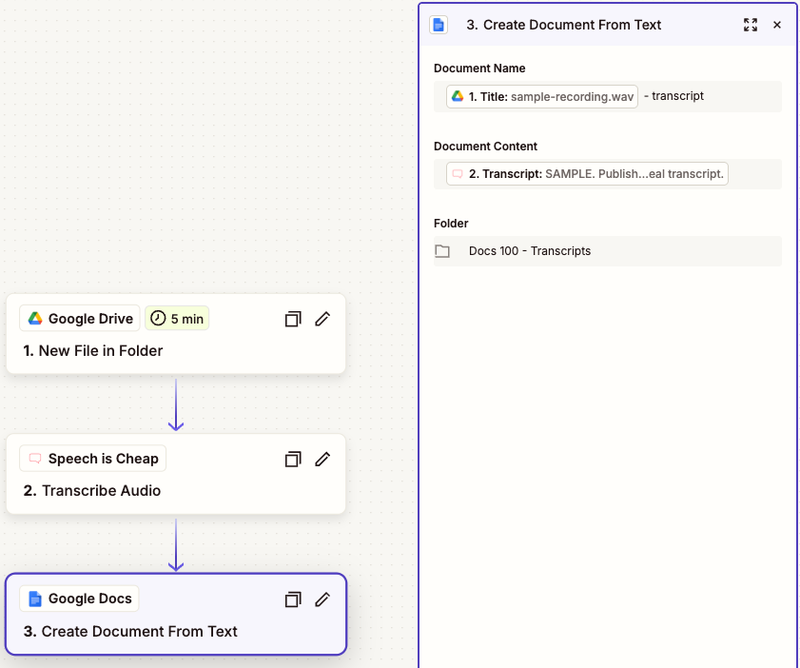
- Add a step by clicking on the plus below the "Transcribe Audio" action.
- Select the Google Docs app.
- Set up the action:
- Action event: Create Document From Text
- Account: Your Google Docs account
- Click on "Continue".
- Configure the action:
- Document Name: Select
Titlefrom the Google Drive step, followed by- transcript. - Document Content: Select
Transcriptfrom the Speech is Cheap step. - Folder: Select a destination folder separate from the folder watched in the trigger step. Saving documents in the watched folder causes the new Google Doc to retrigger the Zap.
- Click on "Continue".
- Document Name: Select
- Test and publish:
- Click on "Test step".
- Verify that Google Docs creates a real sample document in the destination folder using the sample transcript text.
- Click on "Publish".
Verify the implementation
- Upload a fresh supported audio or video file to the watched Google Drive folder.
- Wait for the published Zap to run. Zapier checks Google Drive on its polling interval, Speech is Cheap transcribes the recording, and Google Docs creates the transcript document in your destination folder.
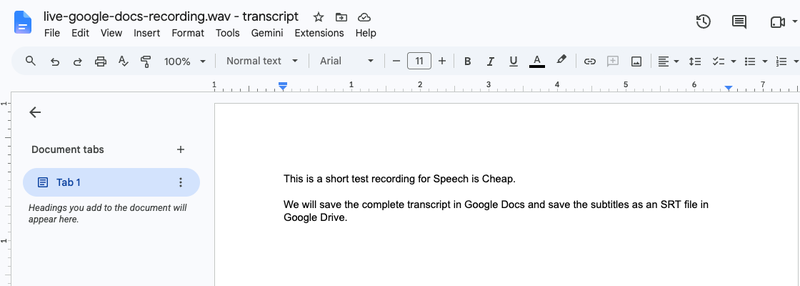
- Open the destination folder in Google Drive to inspect the newly created Google Doc containing the transcript text.
Notes
Files passed through Input File must satisfy the constraints in Input Requirements and Supported File Types. The Overview explains when to use Input URL.